


InsightsHub Snapshots
Snapshots enable researchers to transform individual research insights into bite-sized, visually compelling images designed for social media sharing and stakeholder presentations. This tool operates independently of specific projects or nuggets, allowing you to pull insights directly from any file stored within your centralized repository system.
You can create a new visual snapshot directly from insightshub. Follow these steps:
- Log in to your QuestionPro account and open InsightsHub.
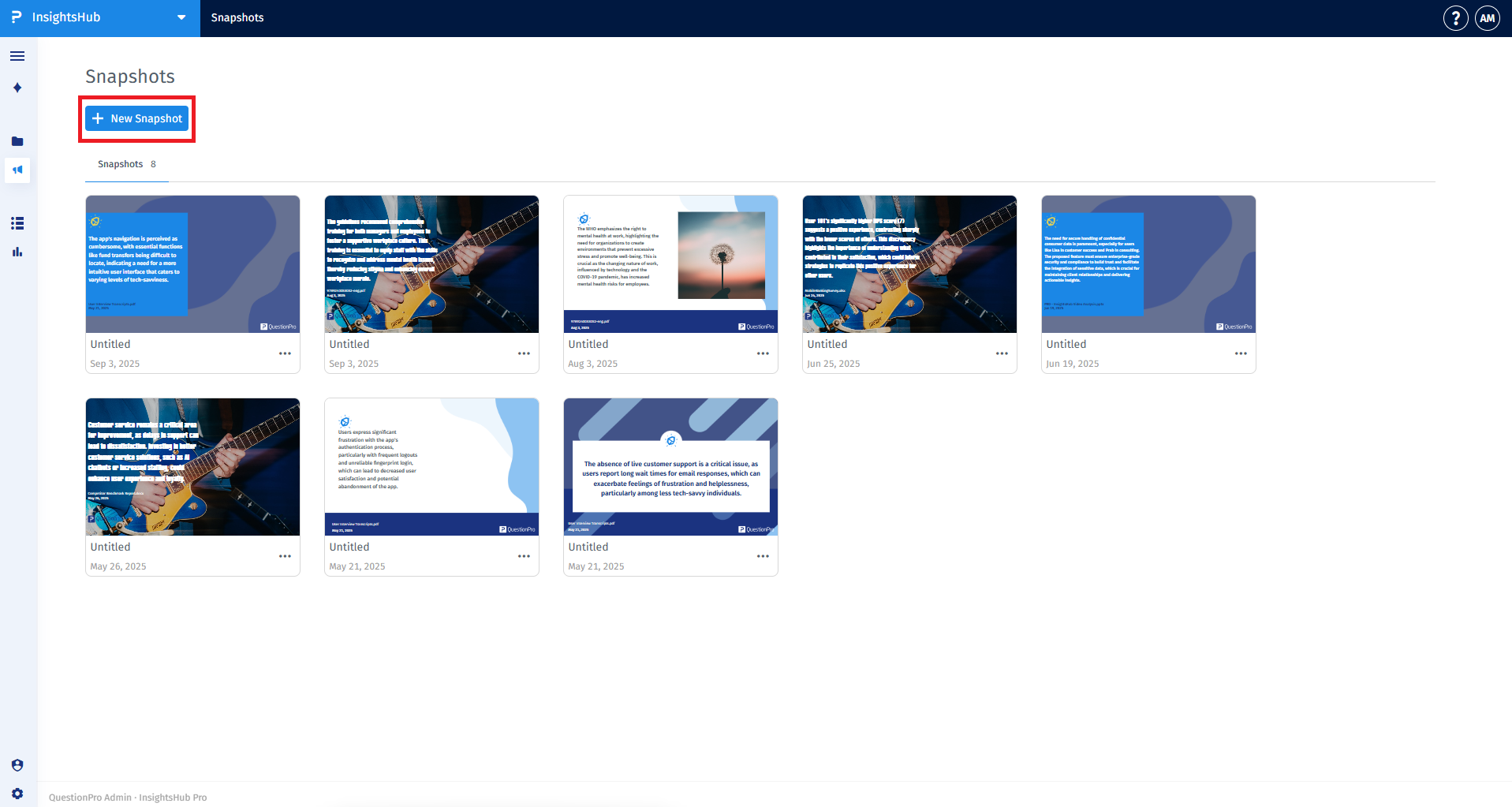
- Click on the Snapshots tab from the main navigation menu.
- Click the global + New snapshot button located in the center of the workspace.
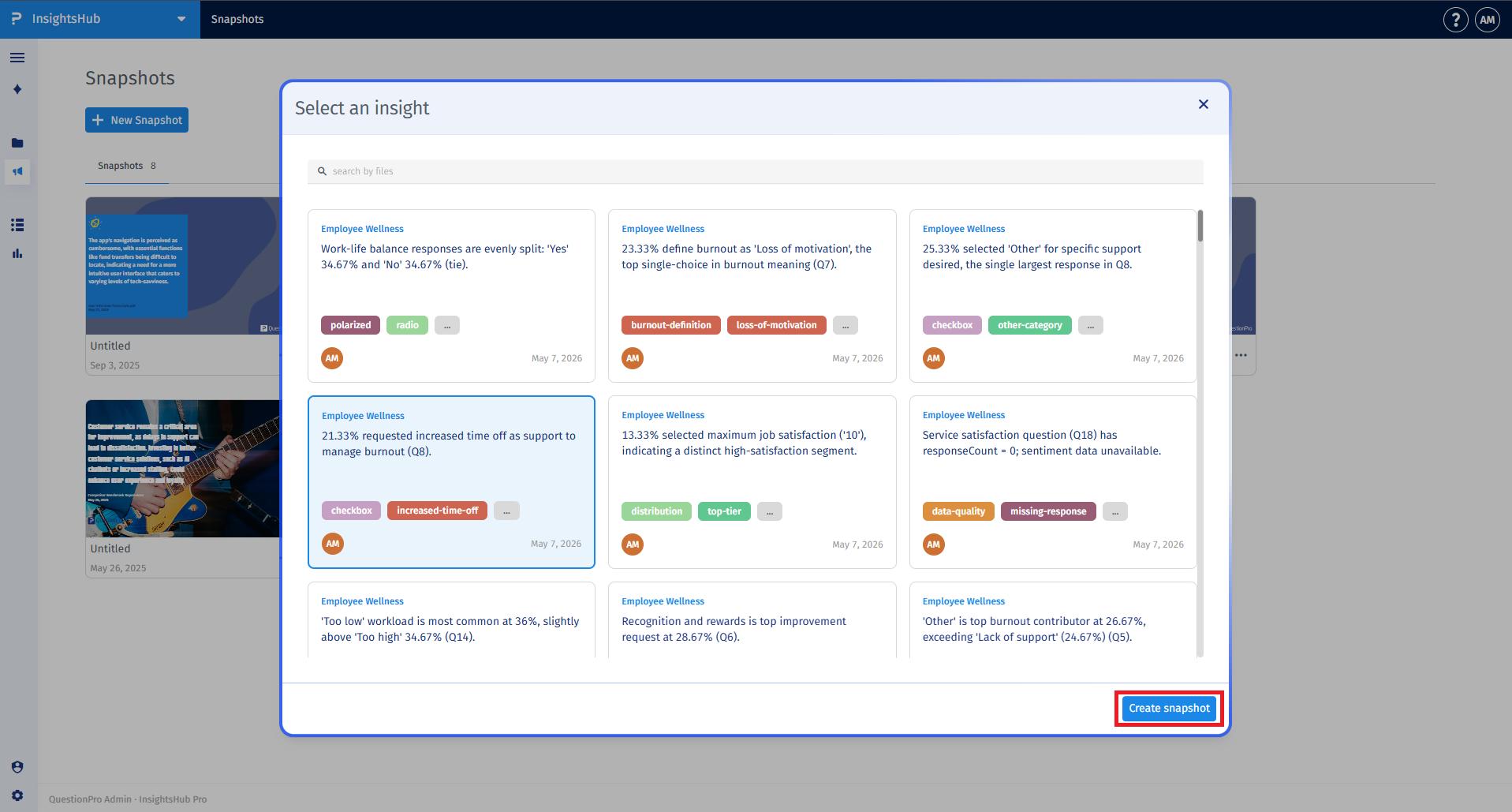
- In the search modal that appears, browse or search through all available insights across your connected repository files.
- Select the individual insight card you want to transform and click Create snapshot to launch the template editor.
If you are already reviewing a research report or data file within the repository, you can generate a visual graphic instantly using the shortcut action:
- Navigate to your repository and open any specific file.
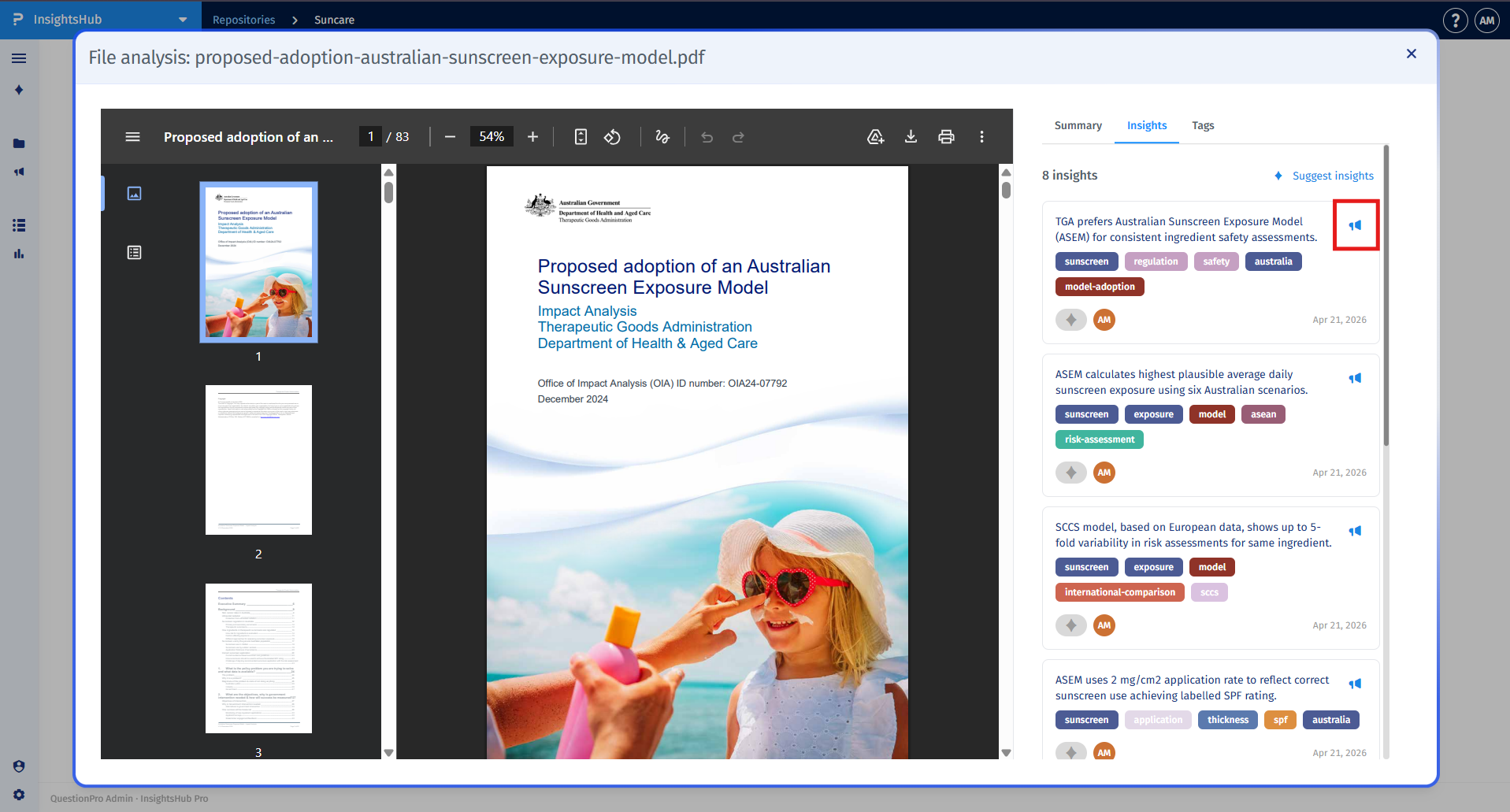
- Switch to the File Analysis view and select the Insights tab.
- Locate the specific insight card you want to highlight.
- Click the Create a snapshot megaphone icon found in the top-right corner of that individual insight card.
- The system will automatically extract the text and direct you straight into the snapshot design canvas.
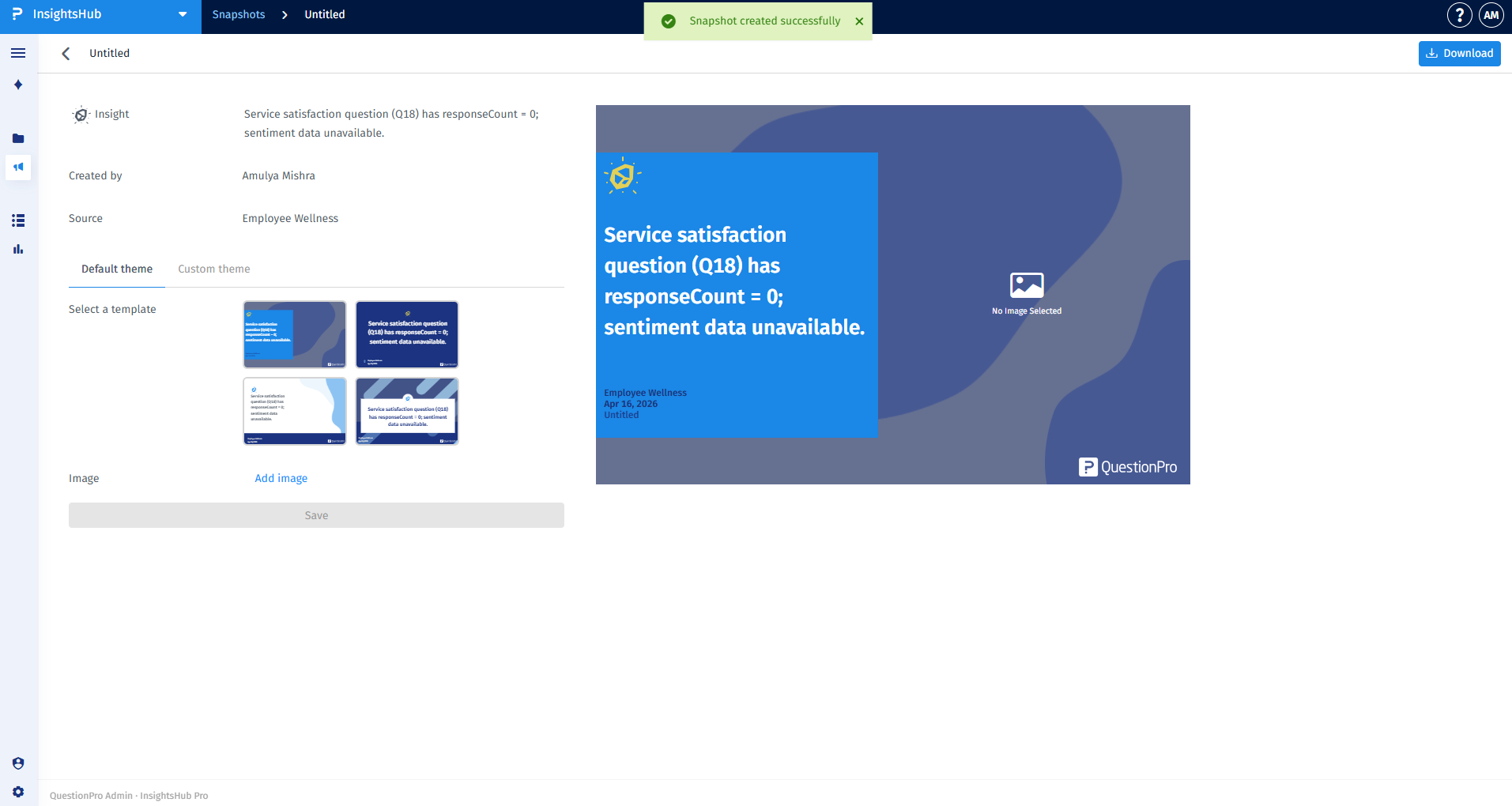
Once your insight text is loaded into the design workspace, you can personalize the formatting and background layout before publishing:
- Select a template: Choose from 4 pre-made square design layouts tailored for optimal legibility on professional social networks.
- Add a background: Select a background image by connecting to the Unsplash API search tool, pasting a direct image URL, or uploading a local image asset from your computer.
- Legibility filters: The editor automatically applies dark or tinted color overlays to ensure that your text contrasts sharply against whatever background choice you select.
- Edit: Reopen the canvas to adjust text size, swap templates, or replace background images.
- Download: Export a high-resolution version of the graphic file directly to your local storage.
- Delete: Permanently remove the visual asset from your organization-wide library.
Batch generation and multi-insight selection are currently unsupported. Each snapshot is designed to feature one focused discovery. Enhanced multi-selection capabilities are planned for a future platform iteration.
Legacy preservation rules are active. All older graphics created under the legacy project and nugget workflows will continue to display correctly in your central library without losing their structural formatting.
This feature is available with the following licenses :
Advanced Team Edition Research Edition Communities Customer Experience Employee Experience Contact Sales University - Research Edition
