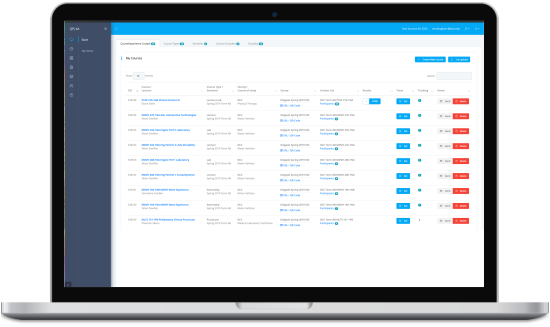
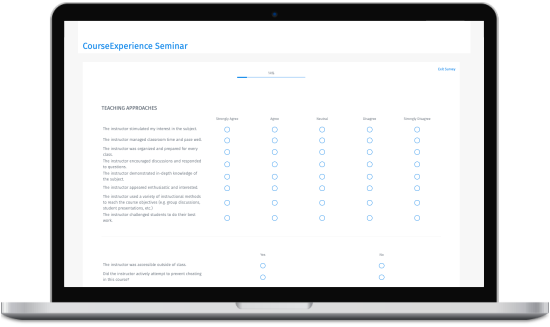
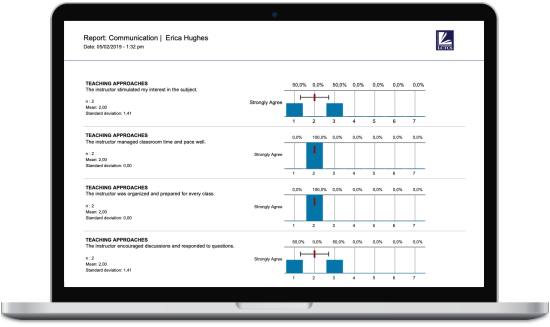
Set up evaluations in QuestionPro, deliver them through Canvas, and bring all your response data, dashboards, and instructor reports back into one place. No separate login for students. No scattered data for your team.
Book a DemoPick the course where the evaluation should live. Works for courses where you are the instructor.
Select a survey from your QuestionPro account or paste a direct survey link. The evaluation content stays in QuestionPro.
Set the title, delivery method, instructions, and publish settings all inside the familiar Canvas assignment builder.
Send to the full course roster or limit to specific sections. Flexible enough for large courses with multiple groups.
Offer complete/incomplete participation credit, set point values, and add due dates so students know what's expected.
Check exactly what students will see before the assignment goes live. Review which surveys are already linked to each course.
Because the evaluation lives inside Canvas as an assignment, students don't need a separate link, a reminder email, or a new login. It's in the same place they check deadlines and submit work.
Set the evaluation to open inside the Canvas page, in a new tab, or where your institution has per-student LTI enabled as a personalized assignment. Pair it with participation credit and a due date to improve completion rates without chasing students down.
Preview the full student experience before a single notification goes out. Once you're confident, publish in one click. As your team builds more evaluations across more courses, the survey-to-course mapping stays visible so nothing gets lost.
In a 20-minute conversation, our team will walk through your current evaluation process, show how QuestionPro connects with Canvas, and map what the setup looks like for your courses.
See exactly how a QuestionPro survey becomes a Canvas assignment from course selection to student submission.
Bring your questions about sections, credit, timing, and reporting. We'll work through how it fits your institution's evaluation cycle.
Understand what's ready to configure now and what may need IT or admin setup so you can move forward with confidence.
Does QuestionPro integrate with Canvas LMS?
Yes. QuestionPro integrates with Canvas through LTI, letting instructors add course evaluations as Canvas assignments. Students complete the QuestionPro survey directly inside Canvas, and all response data, reporting, and dashboards stay inside QuestionPro.
Do I need admin access?
You need admin access the first time to complete the Canvas setup. Once the integration is configured, you can create and manage evaluations on your own.
How do I add a course evaluation to Canvas using QuestionPro?
You choose a Canvas course you teach, select or link a QuestionPro survey, configure the assignment title and delivery method, optionally add participation credit and a due date, preview the student view, and publish. The setup takes a few minutes for each course evaluation.
Can students complete QuestionPro evaluations inside Canvas without a separate login?
Yes. When a course evaluation is added as a Canvas assignment using the QuestionPro LTI integration, students access it through their existing Canvas course. No separate account or login is required.
Where do course evaluation responses from Canvas go?
All responses collect in QuestionPro. Your team accesses reporting, dashboards, and exports from within the QuestionPro platform separated from Canvas. Instructors do not see individual student responses unless access has been explicitly configured.
Can I send course evaluations to specific sections in Canvas, not the whole course?
Yes. When setting up the evaluation assignment, you can restrict it to specific sections within a course, rather than sending it to all enrolled students.