

- Custom Variable Widget
- Priority Matrix
- Heatmap Widget
- Grid Widget
- Weighted mean widget
- Comment List widget
- Widget Filters
- Ranking List Widget
- Distribution Chart
- NPS Widget
- Trend Widget
- Word Cloud Widget
- Cross tab widget
- KPI Comparison Widget
- Bubble chart
- Custom Metric Trend Chart
- Trend Comparison Widget

Metrics Drill-down in Journey Management
The Metrics lane in Journey Management lets you display customer experience metrics from QuestionPro CX surveys directly on your Journey Map.
You can use the Metrics lane to visualize:- NPS (Net Promoter Score)
- CSAT (Customer Satisfaction Score)
Metrics Drill-down allows you to filter metric calculations using Custom Variables or Segment data from survey responses.
This ensures metrics represent only the customers relevant to your Journey.See how Metrics Drill-Down lets you track, filter, and analyze customer journey metrics with ease.
When you add a metric:
- You select a QuestionPro CX survey.
- You select a metric type (NPS / CSAT).
- You select the survey question that defines the metric.
- The system calculates the metric using responses from the selected question and displays the value in the Journey Map.
To configure Metrics Drill-down in the Metrics lane, follow these steps:
-
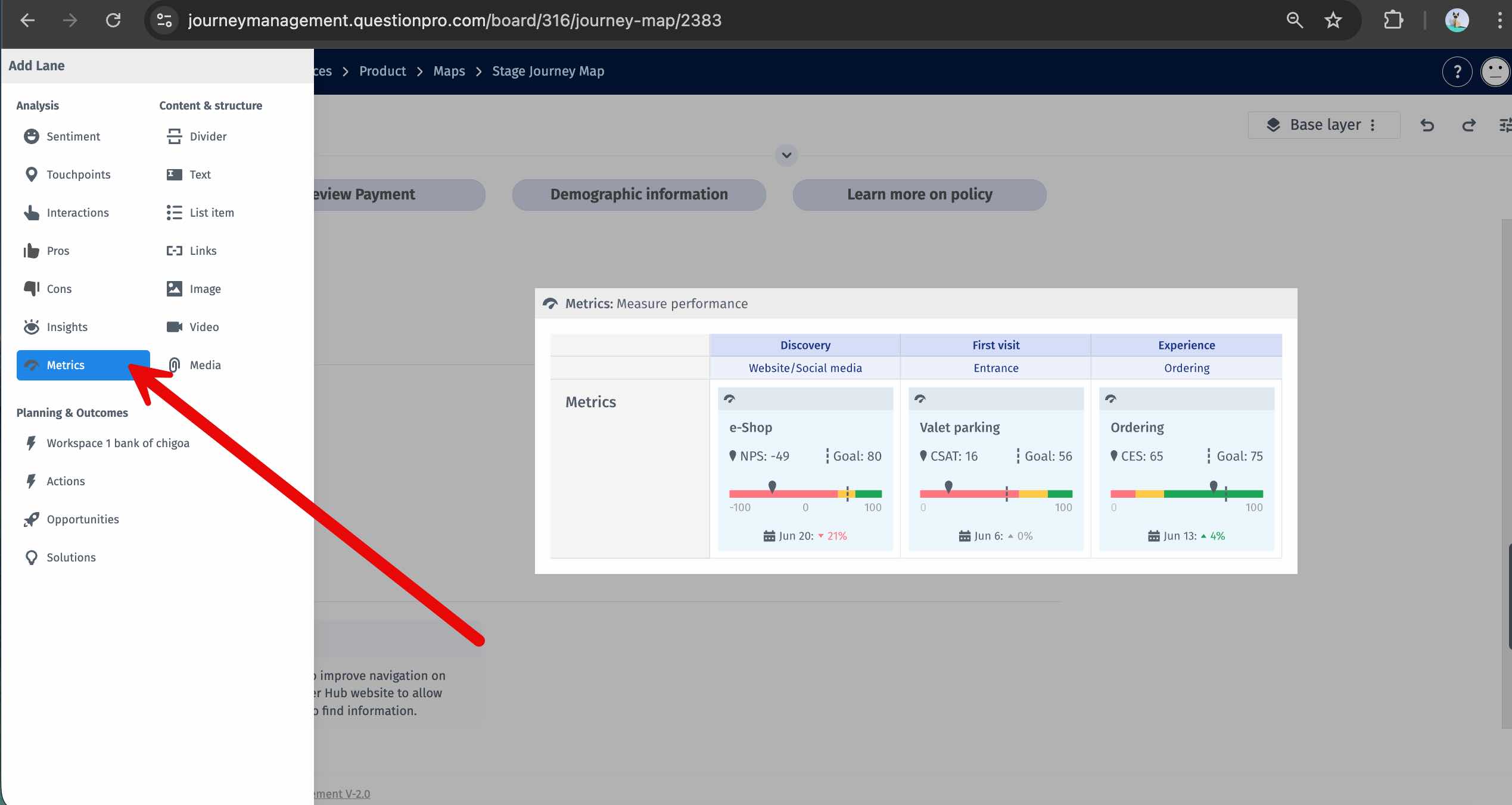
Go to: Journey Map » Metrics Lane

- Click Add Metric
-
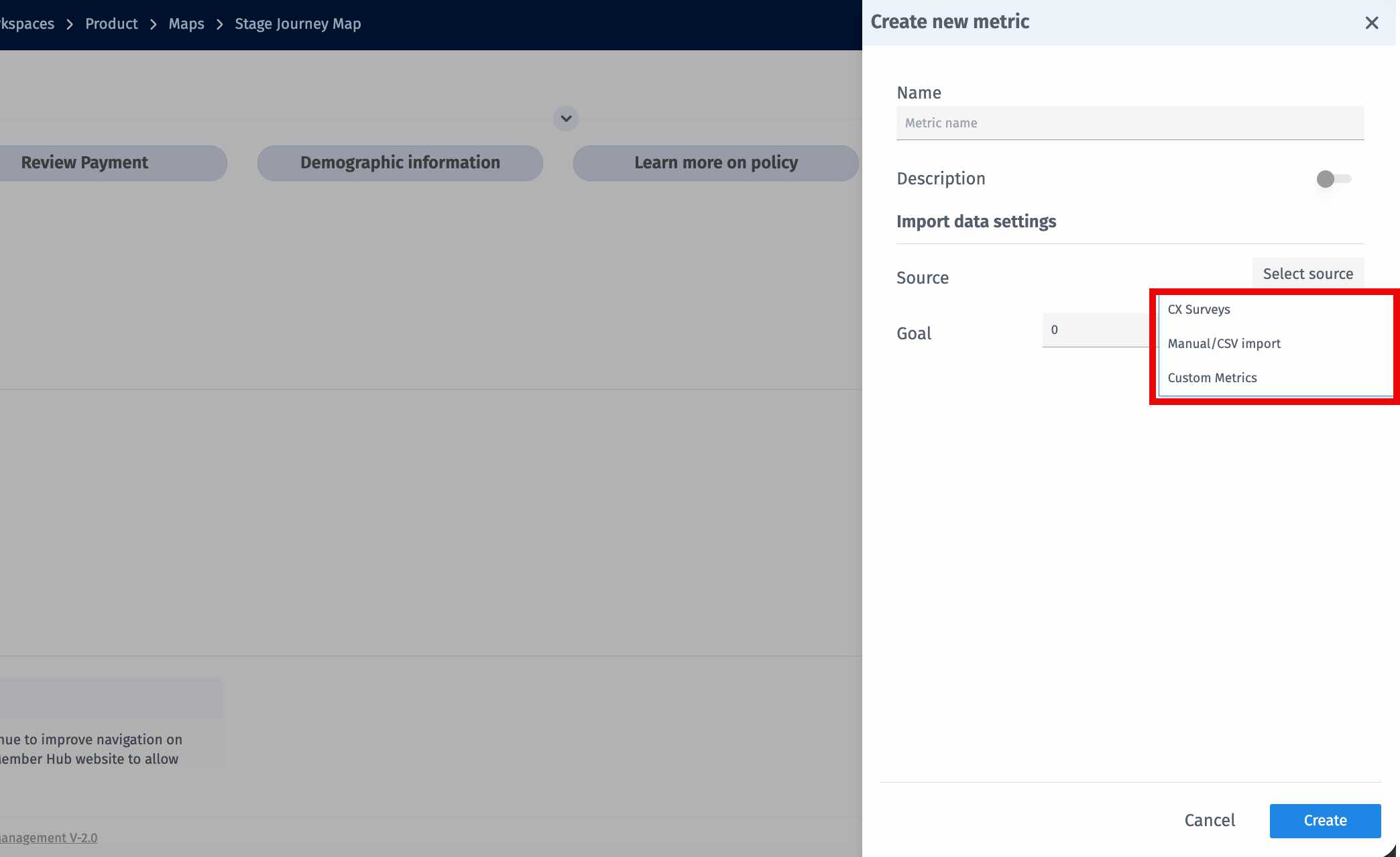
Select Source as CX Surveys
-
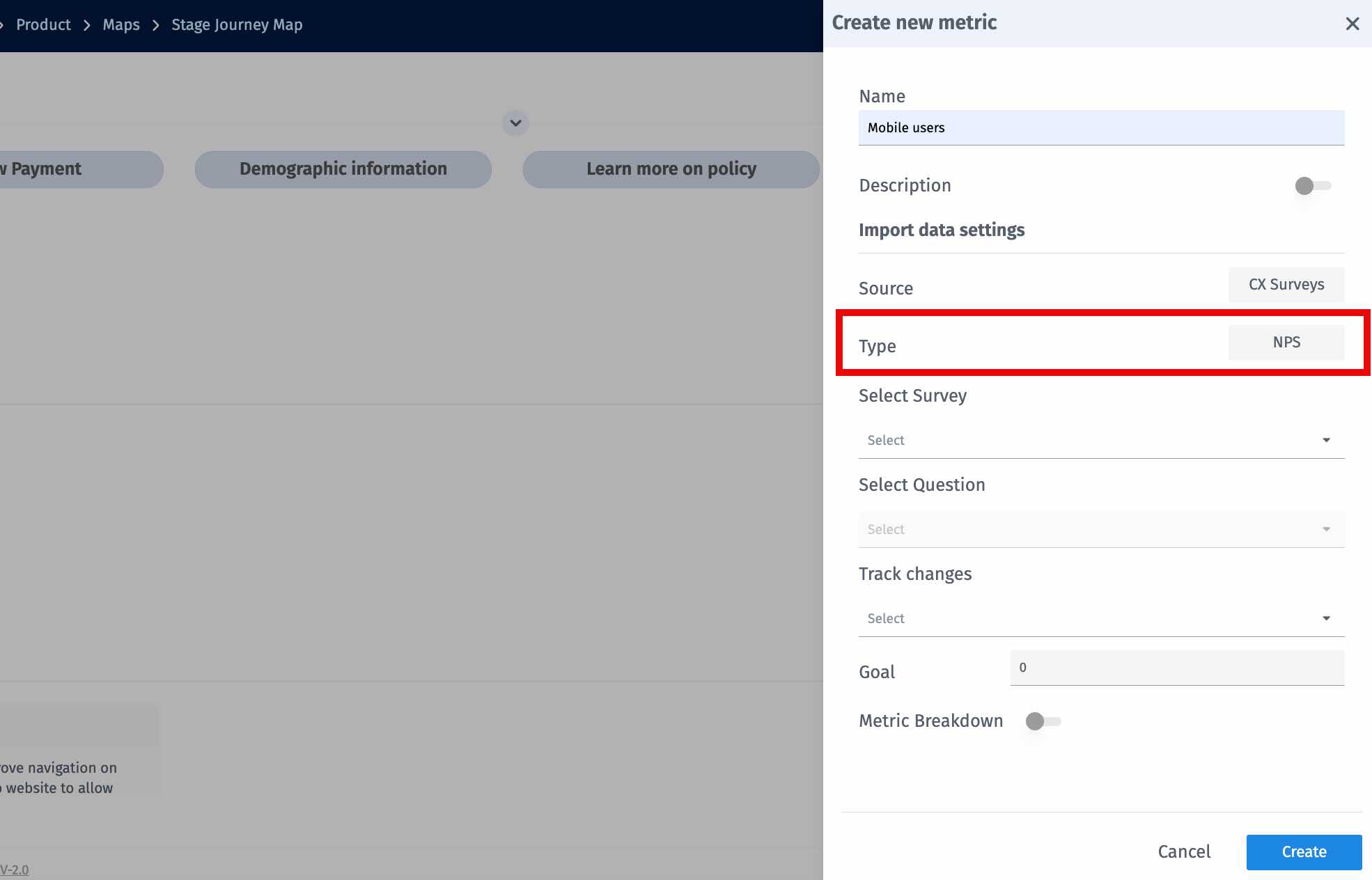
Select the Metric Type (NPS / CSAT)
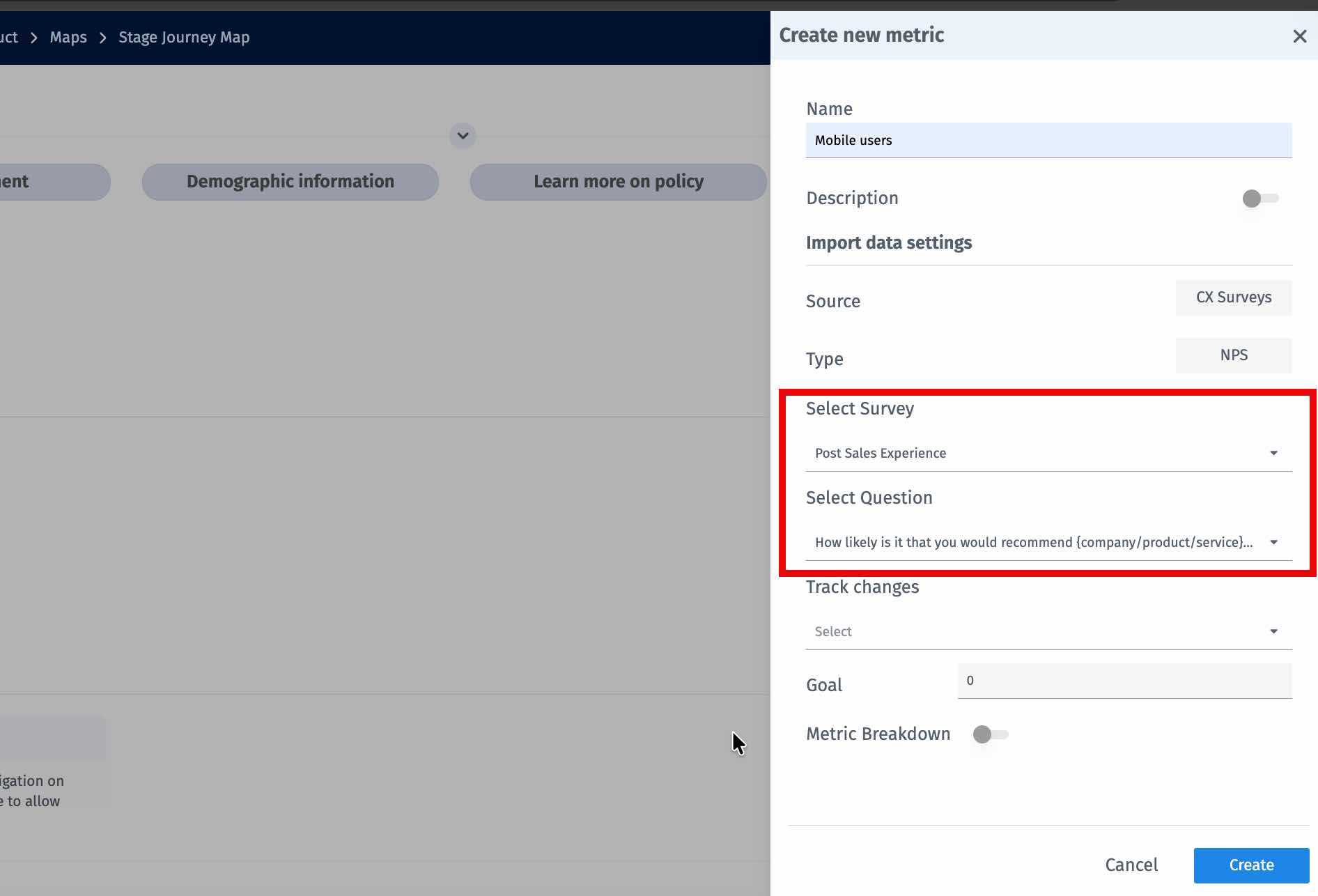
- Select the Survey
-
Select the Survey Question
- Configure the Goal and Tracking settings
-
Enable Drill-down
- Select a Custom Variable from the dropdown
-
Select one or more Custom Variable Values
-
For Segment Based Drill-down – Select a Segment from the dropdown.
The list shows segments that you have already created in your CX workspace. Once selected, the metric will be filtered and calculated using only responses that belong to the selected segment.
- Click Create
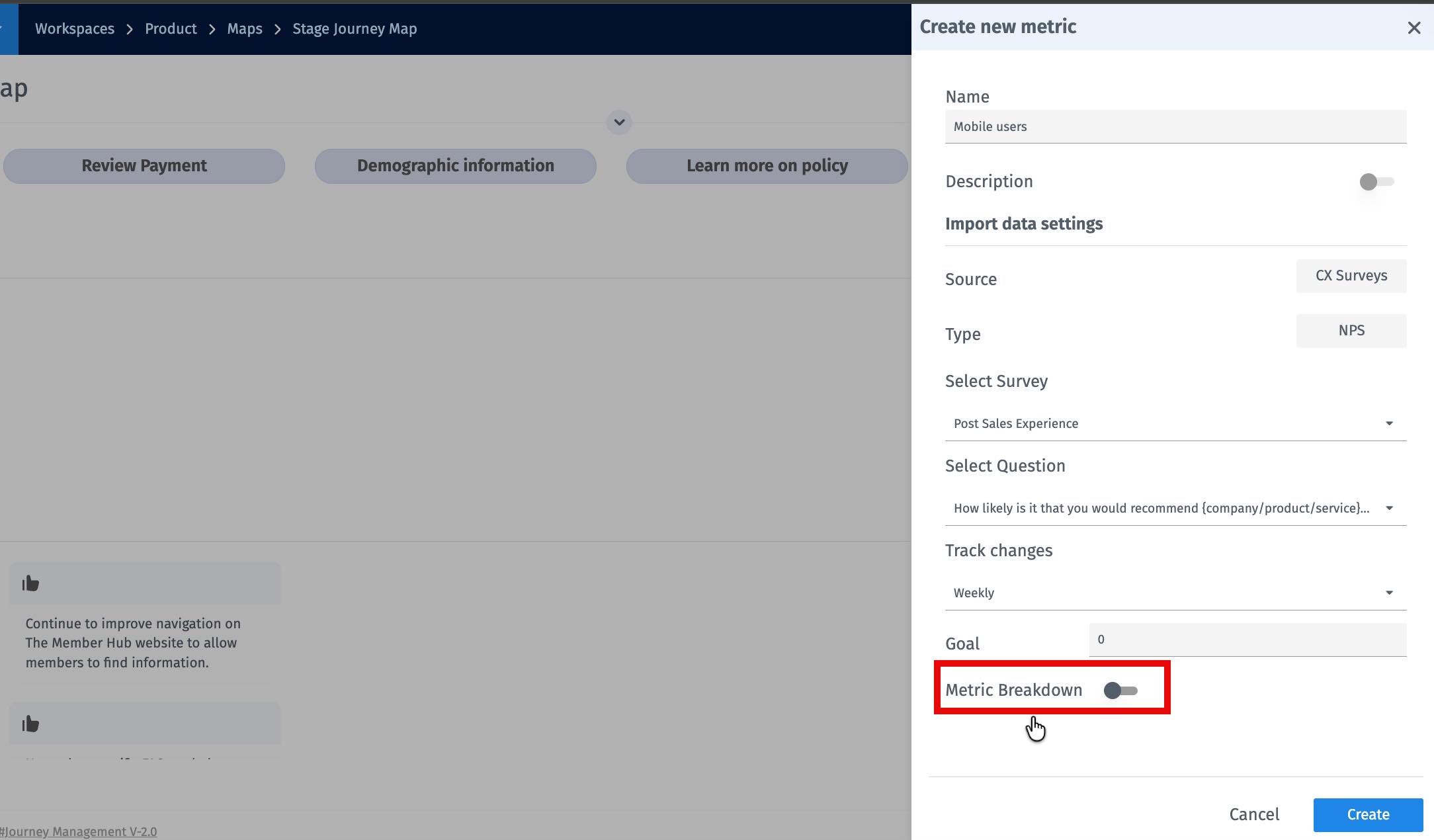
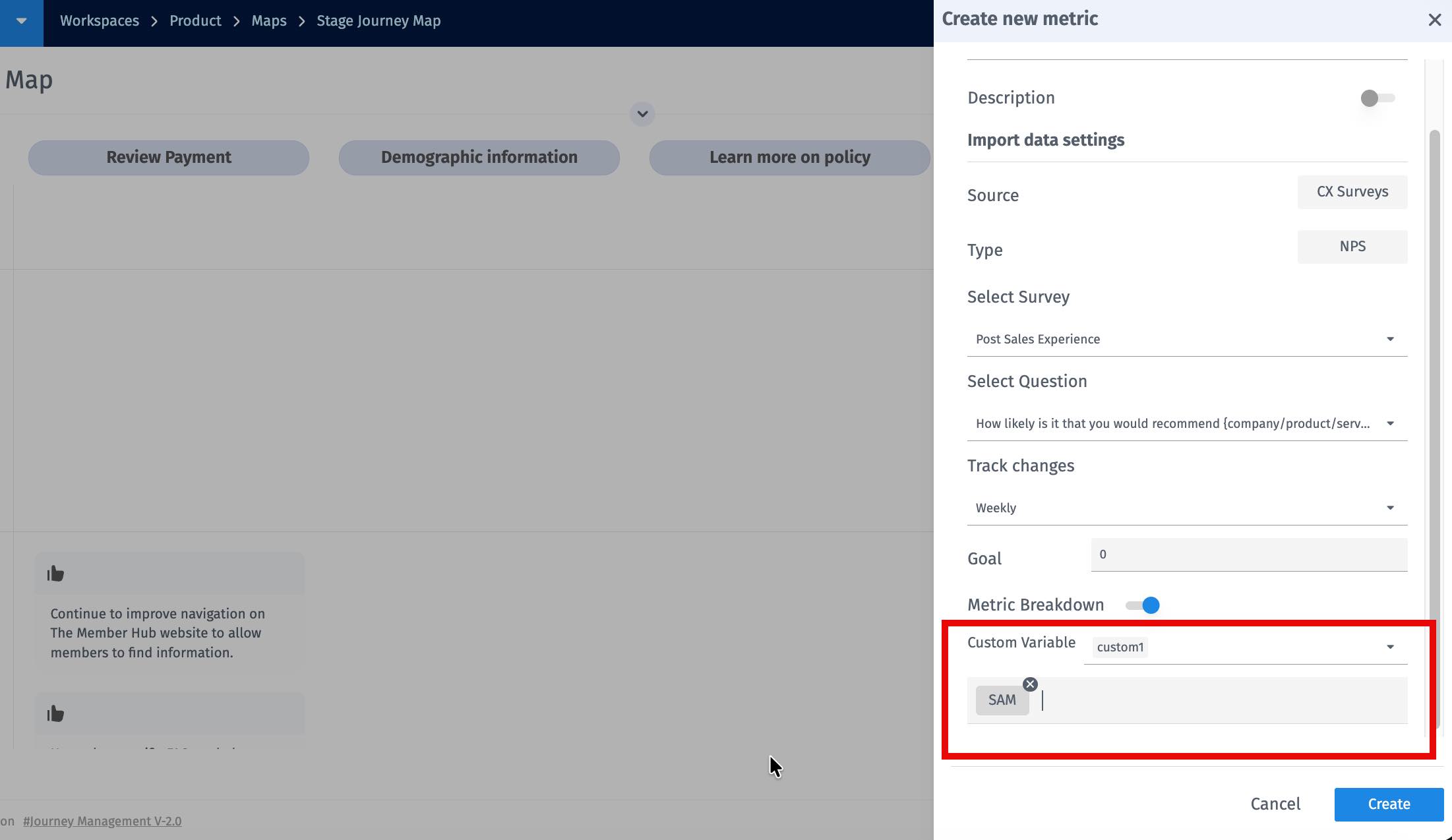
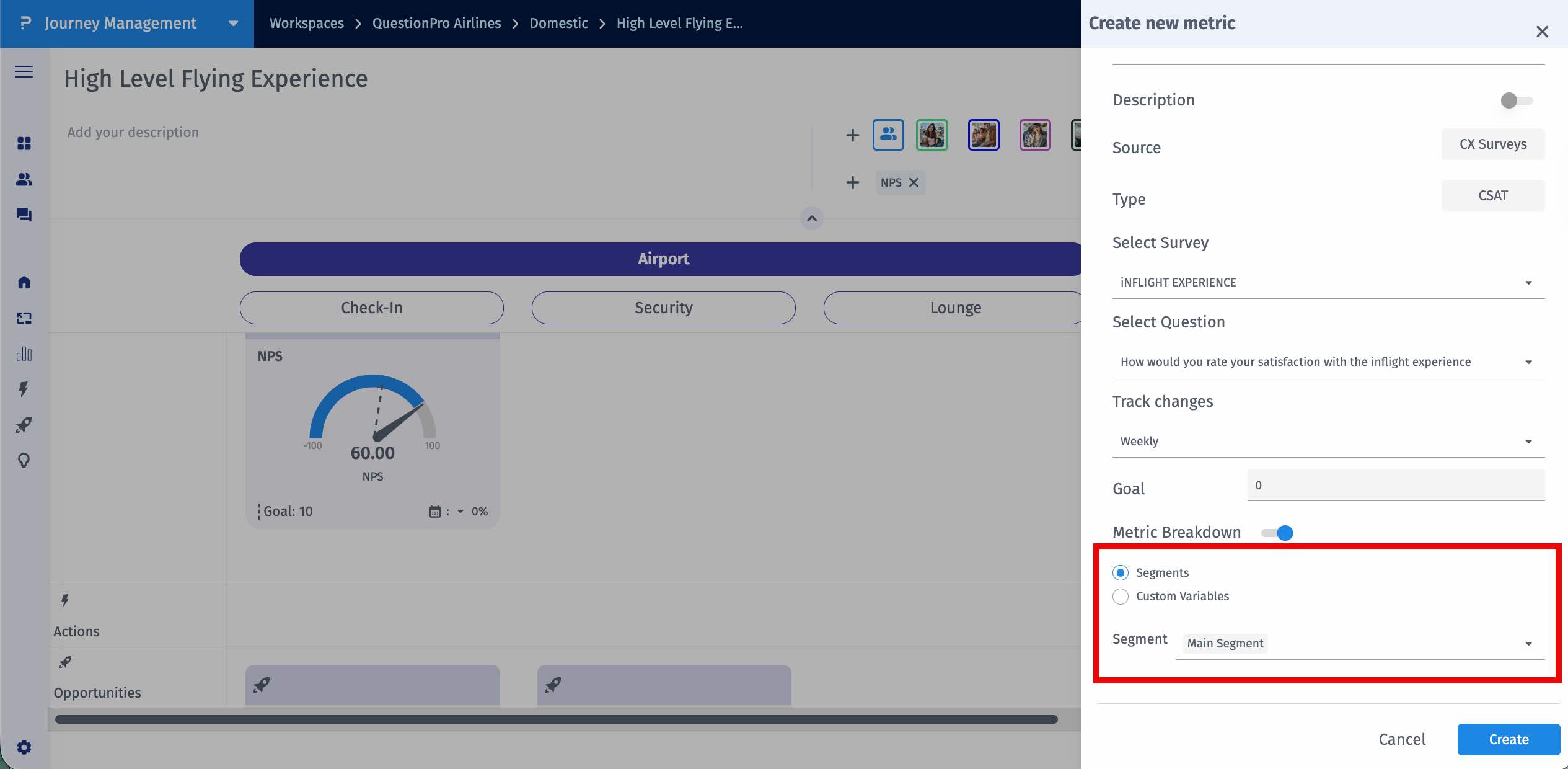
- The metric uses only responses matching the selected custom variable values or segments.
- The metric updates automatically as new responses are collected.
- The filter applies only to that metric.
Example using a Custom Variable:
For a Journey built for Mobile App – First-Time Buyer, you might configure an NPS metric with Source set to CX Surveys, select the survey question "How likely are you to recommend us?", and apply Drill-down using the Custom Variable Product with the value Mobile App. The displayed NPS will reflect only responses from Mobile App users.Example using a Segment:
Suppose you have created a segment in your CX workspace called Downtown Branch Customers. This segment contains survey responses from customers who visited the Downtown bank branch. When configuring the metric, you can select this Segment from the drill-down dropdown. The metric will then be calculated using only responses that belong to the Downtown Branch Customers segment, allowing you to track the experience score specifically for customers of that branch.