

- Custom Variable Widget
- Priority Matrix
- Heatmap Widget
- Grid Widget
- Weighted mean widget
- Comment List widget
- Widget Filters
- Ranking List Widget
- Distribution Chart
- NPS Widget
- Trend Widget
- Word Cloud Widget
- Cross tab widget
- KPI Comparison Widget
- Bubble chart
- Custom Metric Trend Chart
- Trend Comparison Widget

Notifications for Tickets
Notifications allow workspace administrators and shared users with access to Workspace Settings to configure automated email notifications for different ticket events. Notification templates help ensure the right stakeholders receive timely updates throughout a ticket's lifecycle.
The updated notification management experience provides a consistent interface for all notification types, supports additional recipient options, rich text and HTML editing, dynamic system fields, and a dedicated notification type for SLA breaches.
Workspace Owners and Shared Users who have access to Workspace Settings can create, edit, enable, or disable notification templates.
Navigate to:
Closedloop → Workspace Settings → Notifications
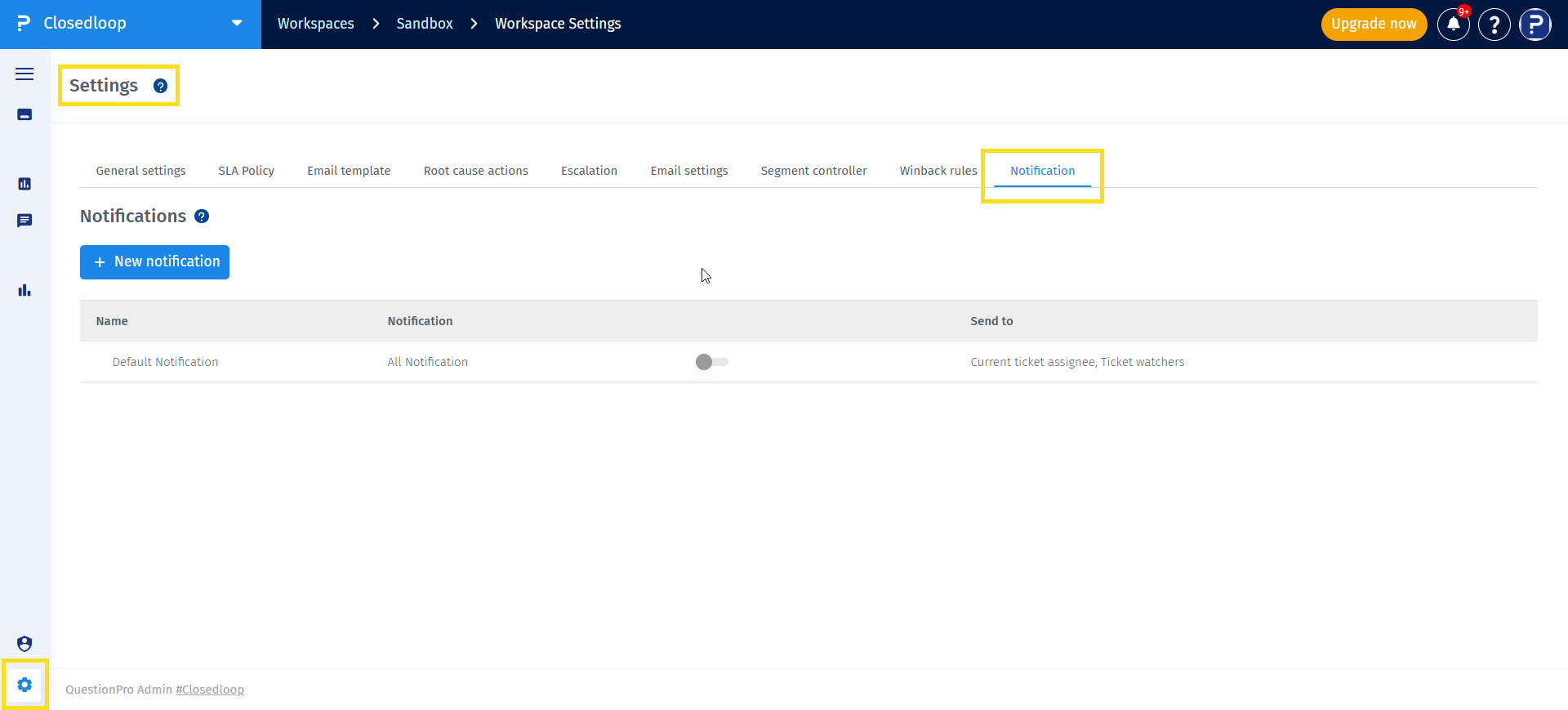
- Navigate to Customer Experience → Closedloop and open the required workspace.
- Open Workspace Settings and select Notifications.
-
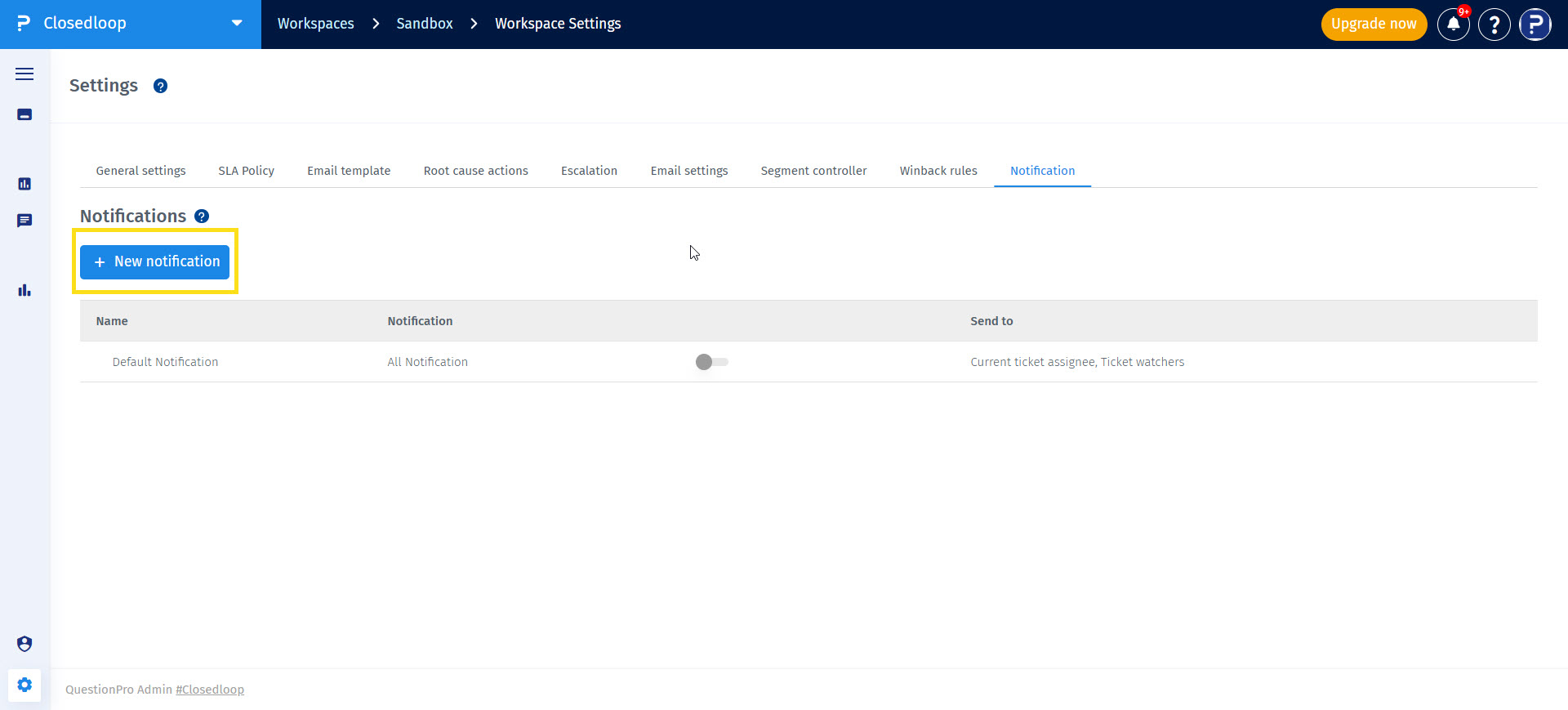
Click the + New Notification button.

-
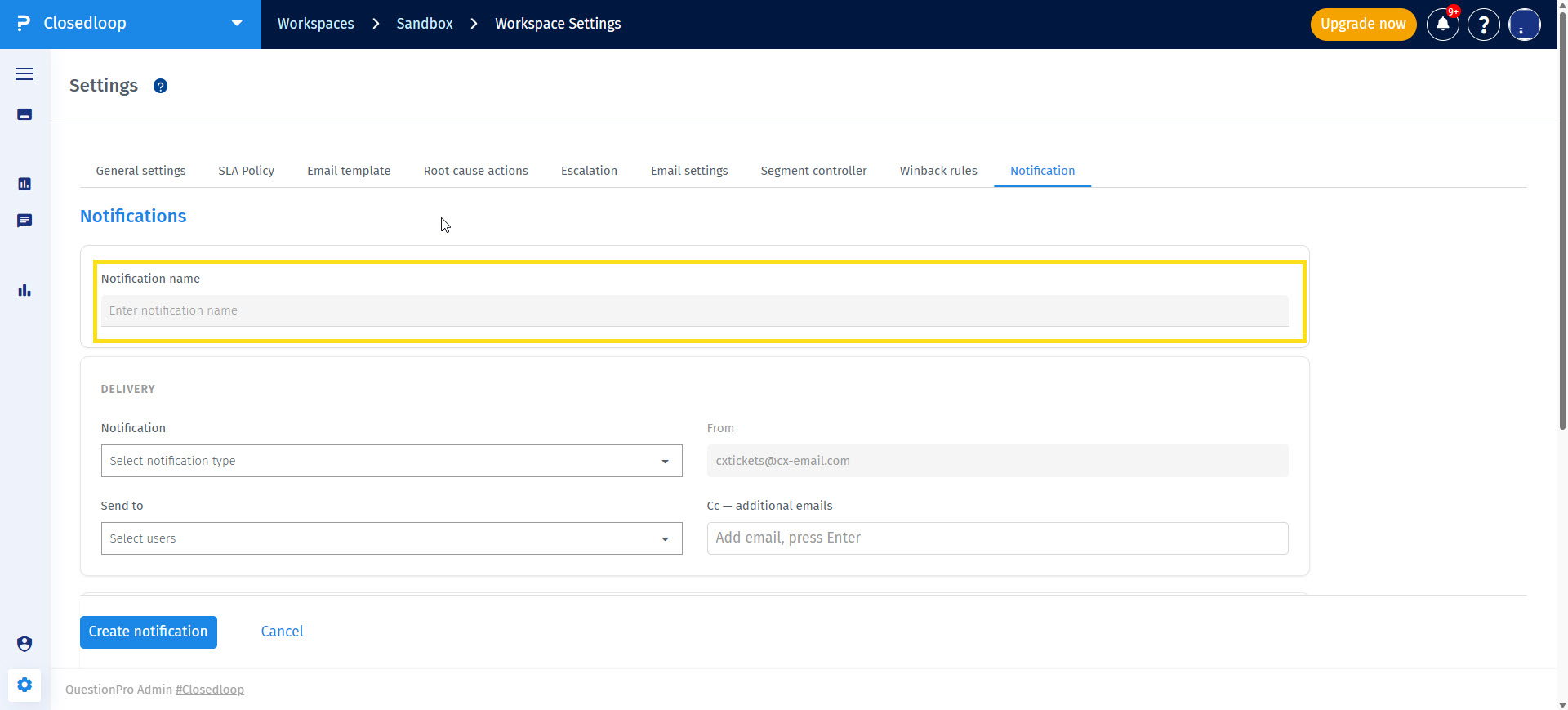
On the notification set up page, write a name for your notification, this helps in identification when you have more than 1 notification set up.
-
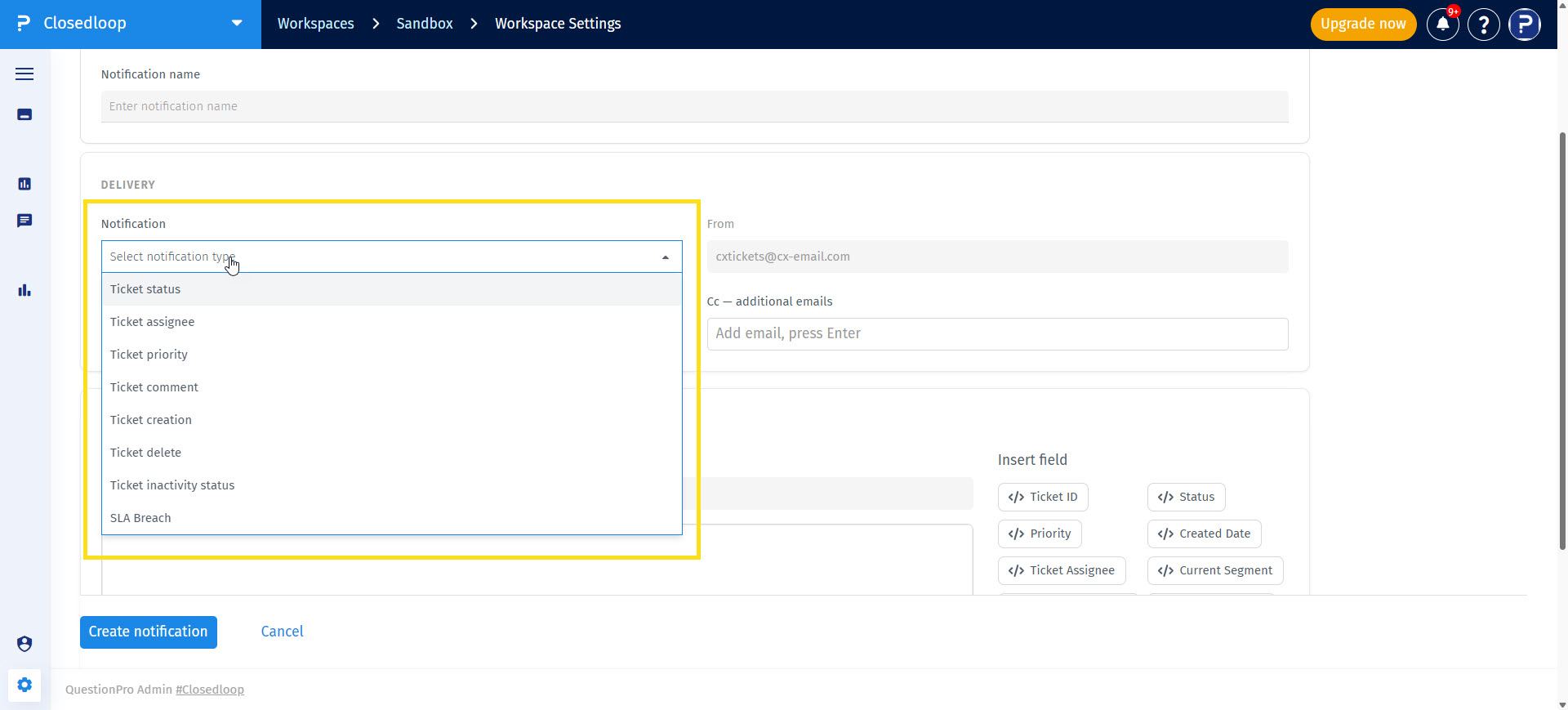
Select the notification type that you want to configure.
-
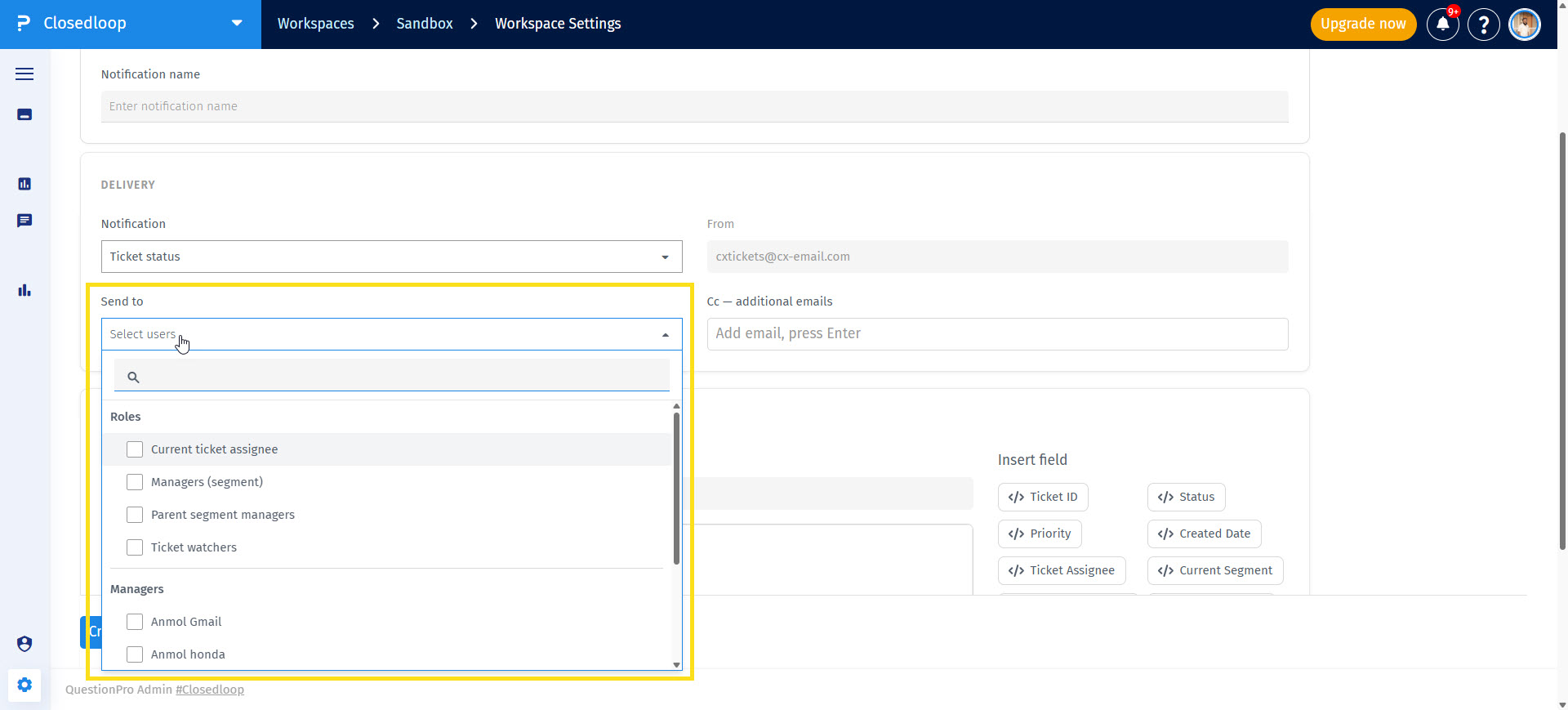
Select the recipeints from the Send to dropdown.
-
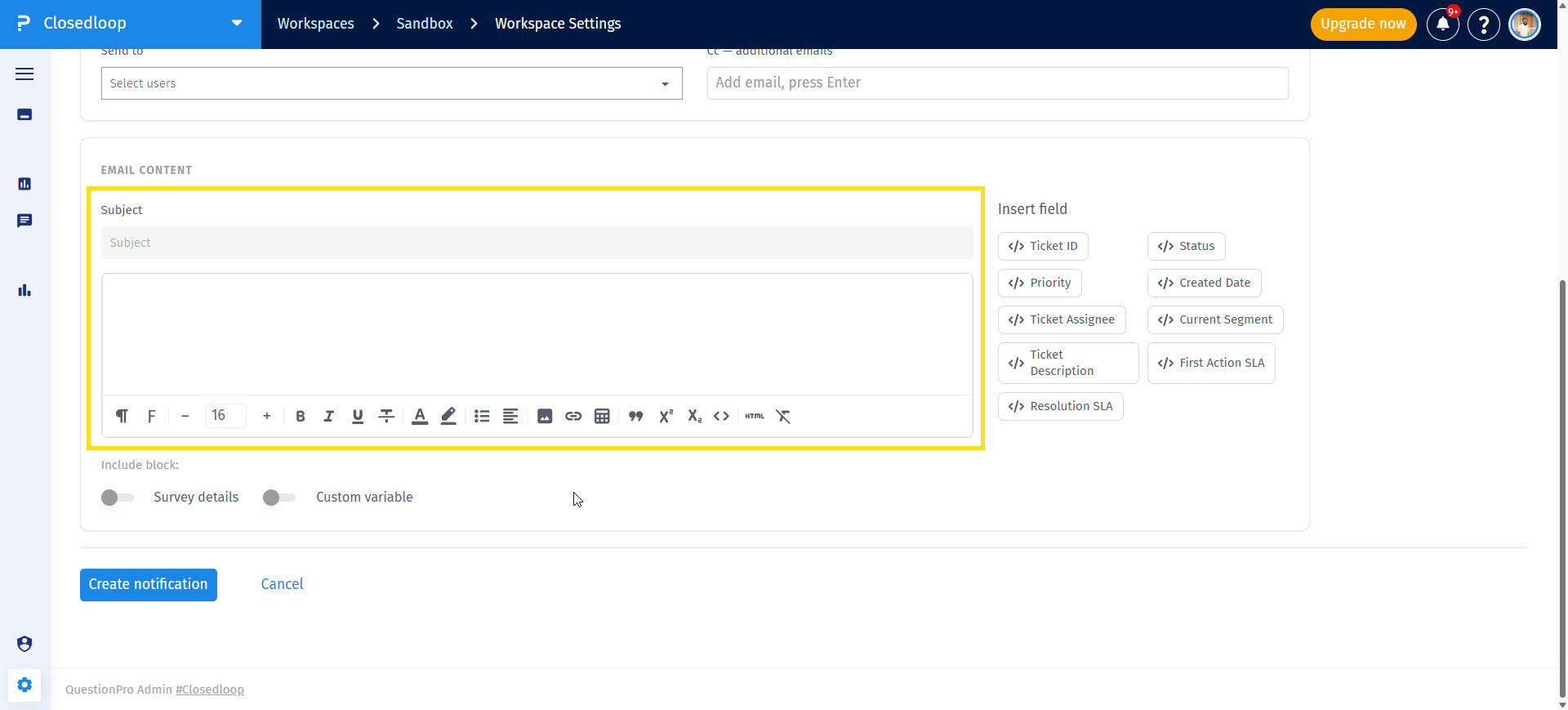
Configure the notification subject and email body.
-
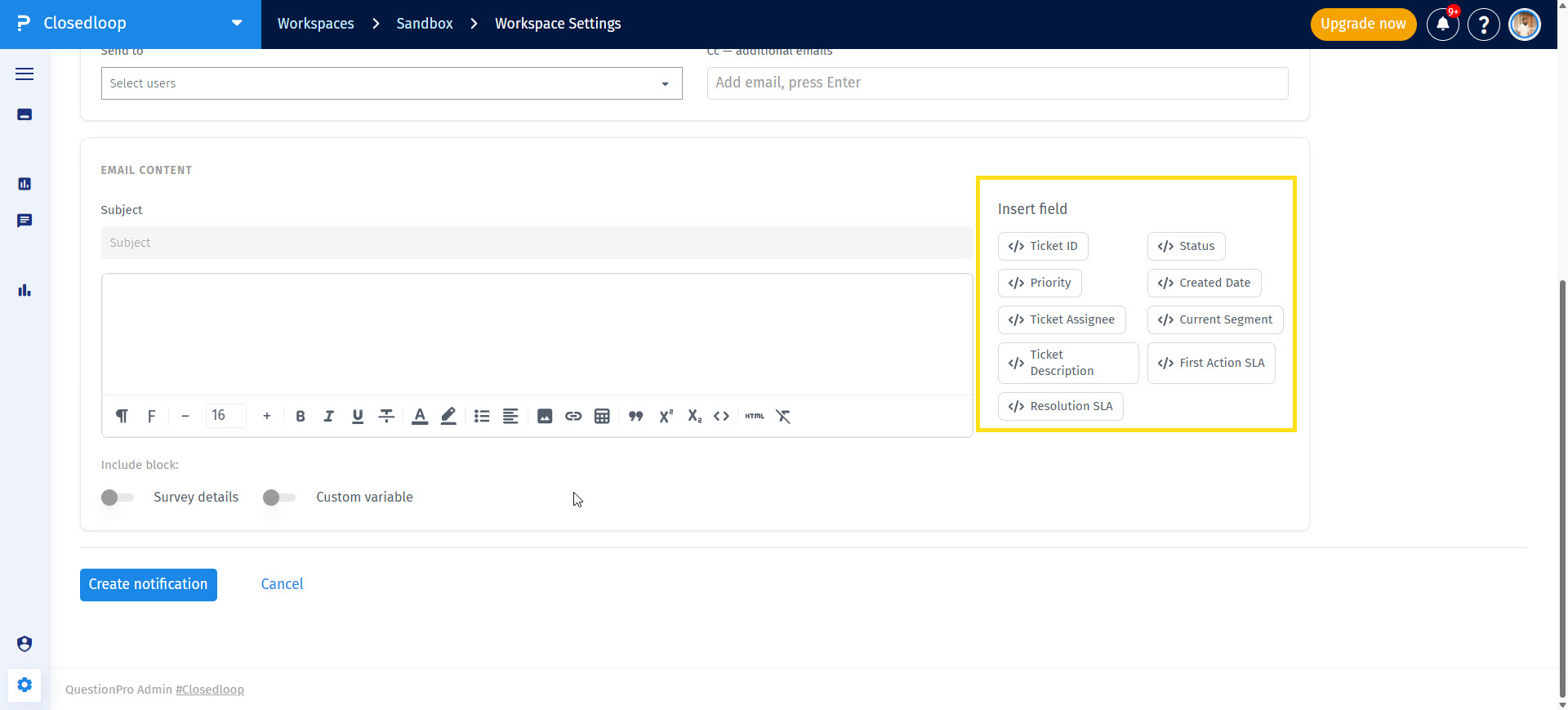
You can also use the system fields anywhere in the notification subject or body.
-
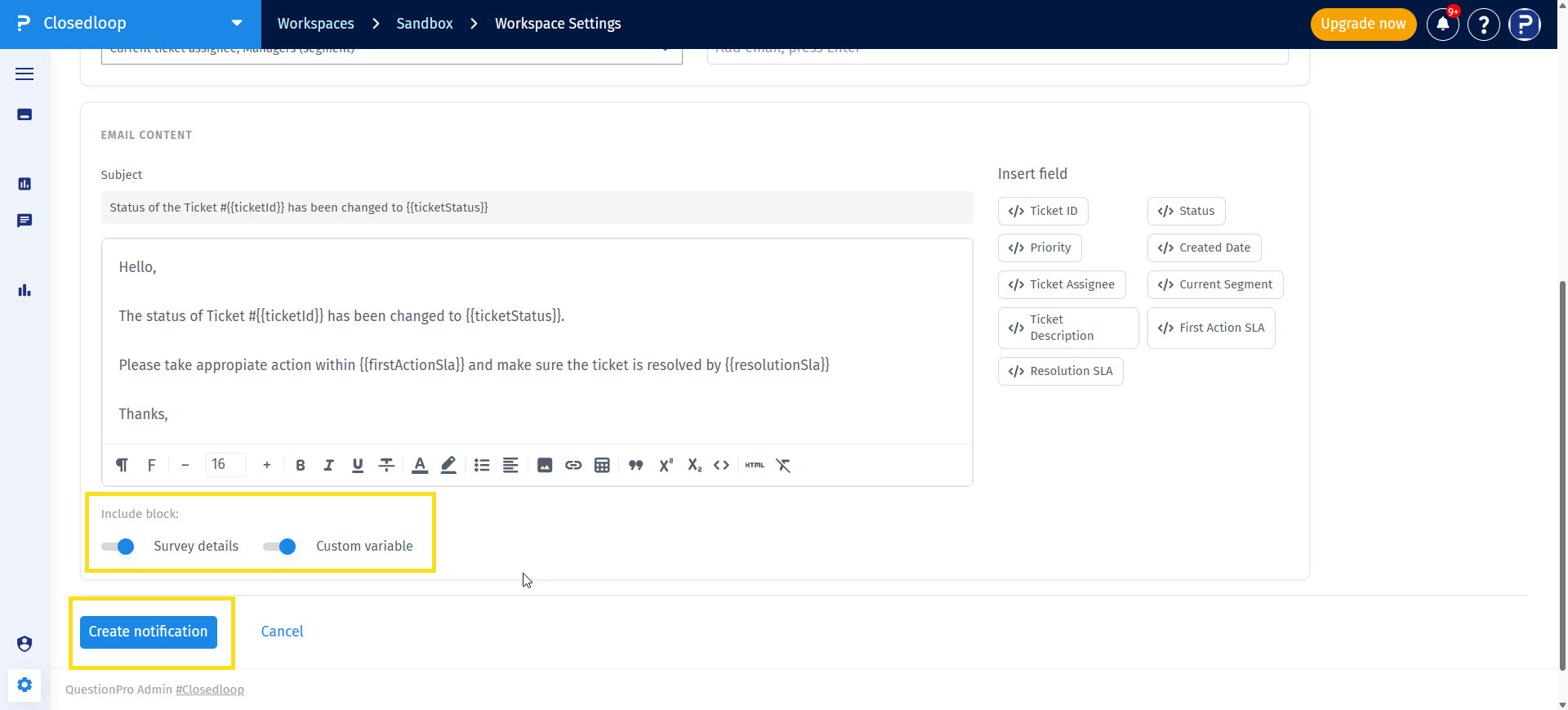
If required, you can enable the Survey details and Custom variable block to be appended after your notification body.
- Click Create notification button to save the changes.
The Send to field supports the following recipient types:
- Current Ticket Assignee
- Segment Managers
- Parent Segment Managers
- Ticket Watchers
- Individual Managers
These options allow notifications to be sent dynamically based on the ticket context instead of maintaining separate notification templates for different teams.
The SLA Breach notification type allows you to notify stakeholders whenever a ticket exceeds its configured Service Level Agreement (SLA).
Similar to other notification types, you can configure:
- Subject
- Email Body
- Send to recipients
- Additional recipients (To)
- Notification enable/disable settings
The notification editor supports both Rich Text Formatting (RTF) and HTML source editing.
- Use the Rich Text Editor to format text, apply headings, lists, links, colours, and other common formatting options without writing HTML.
- Switch to HTML Source mode to edit the underlying HTML markup for advanced email customization.
Changes made in either editing mode are reflected in the notification template when saved.
System Fields allow you to insert dynamic ticket information into notification subjects and email bodies.
When a notification is sent, these placeholders are automatically replaced with values from the corresponding ticket.
- Place the cursor where you want to insert the dynamic value.
- Click the System Fields option.
- Select the required field from the available list.
- The selected placeholder is inserted into the editor.
- When the notification is generated, the placeholder is automatically replaced with the appropriate ticket information.
- Provides a consistent configuration experience across all notification types.
- Allows notifications to be targeted based on ticket context.
- Supports dedicated SLA breach notifications.
- Enables advanced email customization using Rich Text and HTML editing.
- Reduces manual effort through reusable notification templates.
- Supports dynamic email content using System Fields.
Workspace Owners and Shared Users who have access to Workspace Settings can configure notification templates.
Yes. The notification editor supports both Rich Text editing and direct HTML source editing.
Yes. Segment Managers, Parent Segment Managers, Individual Managers, and the Default Ticket Assignee can all be selected as recipients.
System Fields automatically insert ticket-specific information into notification subjects and email bodies when the notification is sent.
Yes. Each notification template can be enabled or disabled as needed.
- Review recipient selections before saving a notification template.
- Use Segment Managers and Parent Segment Managers to reduce manual recipient management.
- Use System Fields instead of manually entering ticket information.
- Preview HTML changes carefully before using them in production.
- Keep notification templates concise and relevant to improve readability.
