

- Custom Variable Widget
- Priority Matrix
- Heatmap Widget
- Grid Widget
- Weighted mean widget
- Comment List widget
- Widget Filters
- Ranking List Widget
- Distribution Chart
- NPS Widget
- Trend Widget
- Word Cloud Widget
- Cross tab widget
- KPI Comparison Widget
- Bubble chart
- Custom Metric Trend Chart
- Trend Comparison Widget

Journey Atlas
Journey Atlas provides a centralized view of related Journey Maps. It helps you understand how individual journeys connect through a hierarchy consisting of a Root Journey, Child Journeys, and Grandchild Journeys.
Use Journey Atlas to organize related journeys, manage their relationships, and navigate between different parts of the customer experience.
Watch this video for a quick overview of Journey Atlas.
- Navigate to your Journey board.
- Locate the view selector.
- Select Atlas View to see the Journey Map hierarchy.
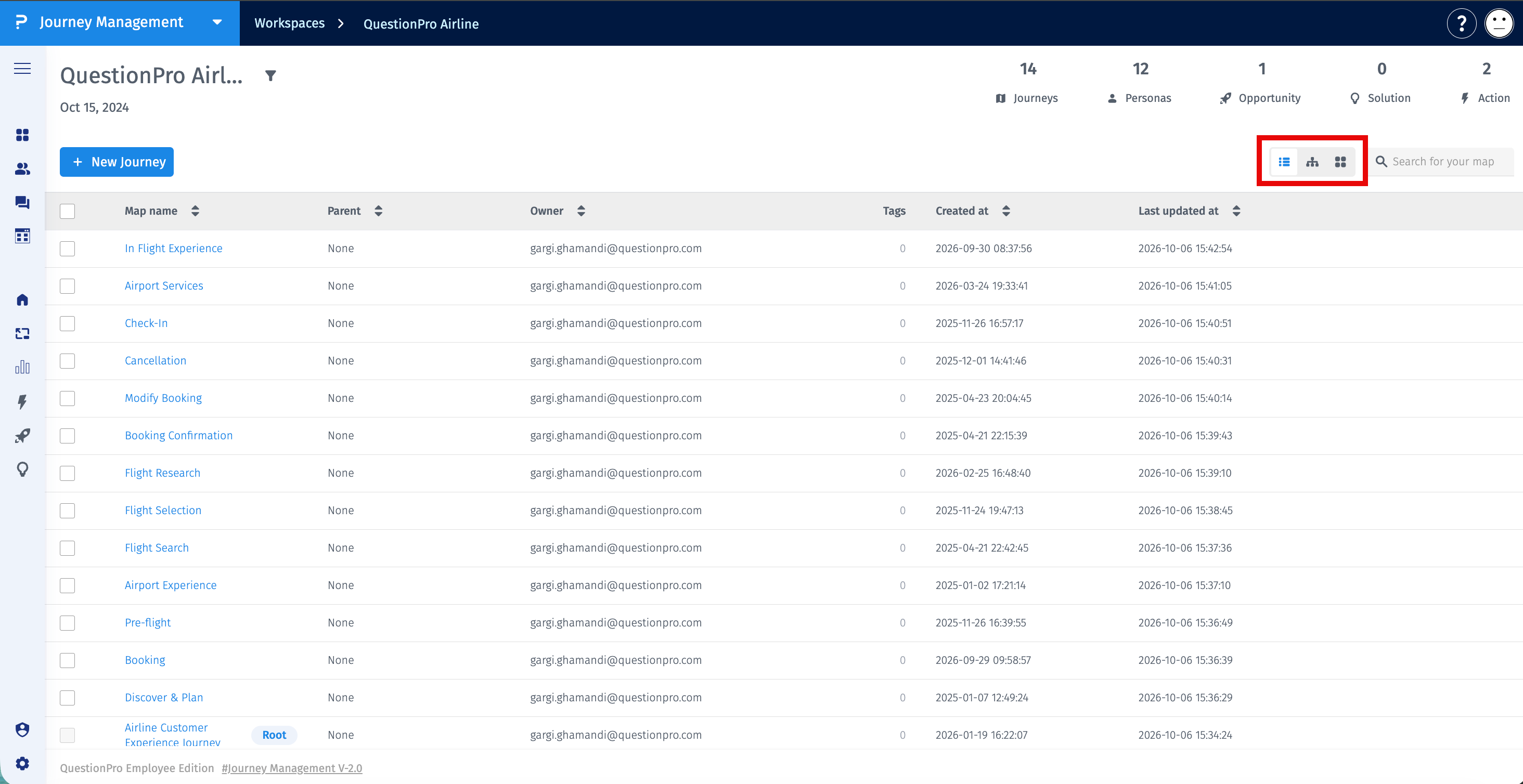
You can switch between List View, Atlas View, and Board View depending on your needs.
The Journey board provides three views for exploring and managing Journey Maps:
- List View: Displays Journey Maps in a list format, making it easier to browse and locate individual journeys.
- Atlas View: Visually organizes Journey Maps into a hierarchy and shows how the Root Journey, Child Journeys, and Grandchild Journeys are connected.
- Board View: Lets you open and work on an individual Journey Map.
Journey Atlas uses a parent-child structure to organize related Journey Maps.
- Root Journey: The top-level Journey Map under which the related journey hierarchy is organized. Only one Root Journey can exist at a time.
- Child Journey: A Journey Map directly associated with the Root Journey or another parent journey.
- Grandchild Journey: A Journey Map nested beneath a Child Journey.
For example, an end-to-end customer experience may contain Child Journeys such as Customer Acquisition, Purchase Experience, and Post-Purchase Experience. Each Child Journey may contain more detailed Grandchild Journeys.
Atlas View provides a visual overview of the Journey Map hierarchy. You can use it to:
- Understand relationships between Journey Maps.
- Navigate between related journeys.
- Change which Journey Map serves as the Root Journey.
- Change the parent of a Child or Grandchild Journey.
- Add a sub-journey beneath an existing journey.
You can change which Journey Map serves as the Root Journey as your journey ecosystem evolves.
- Open your Journey board.
- Switch to Atlas View.
- Locate the Journey Map you want to make the root.
- Open the available journey actions and select the option to change its root status.
- Review the updated hierarchy.
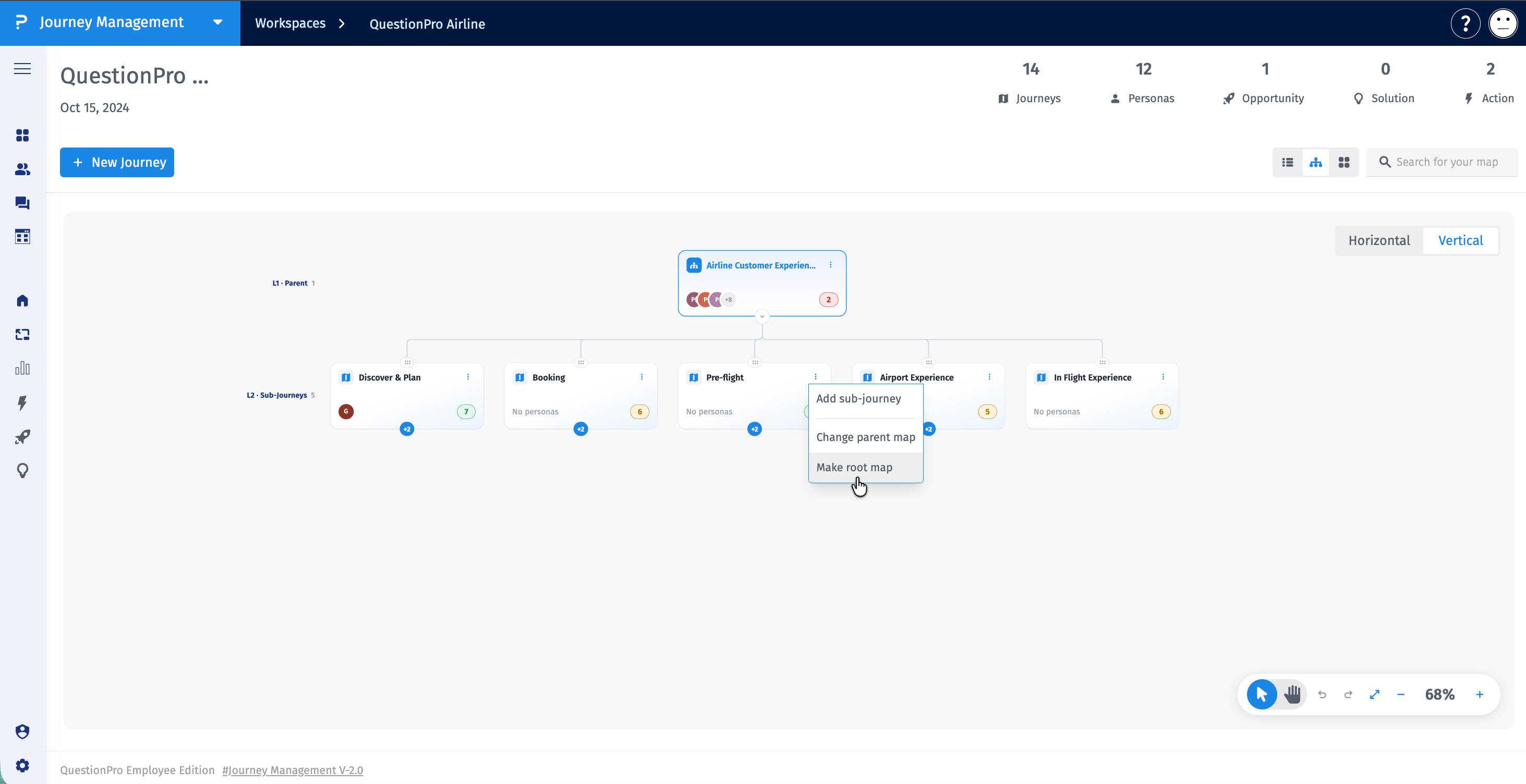
Important: Only one Root Journey can exist at a time. Changing the Root Journey updates the top-level structure of the hierarchy.
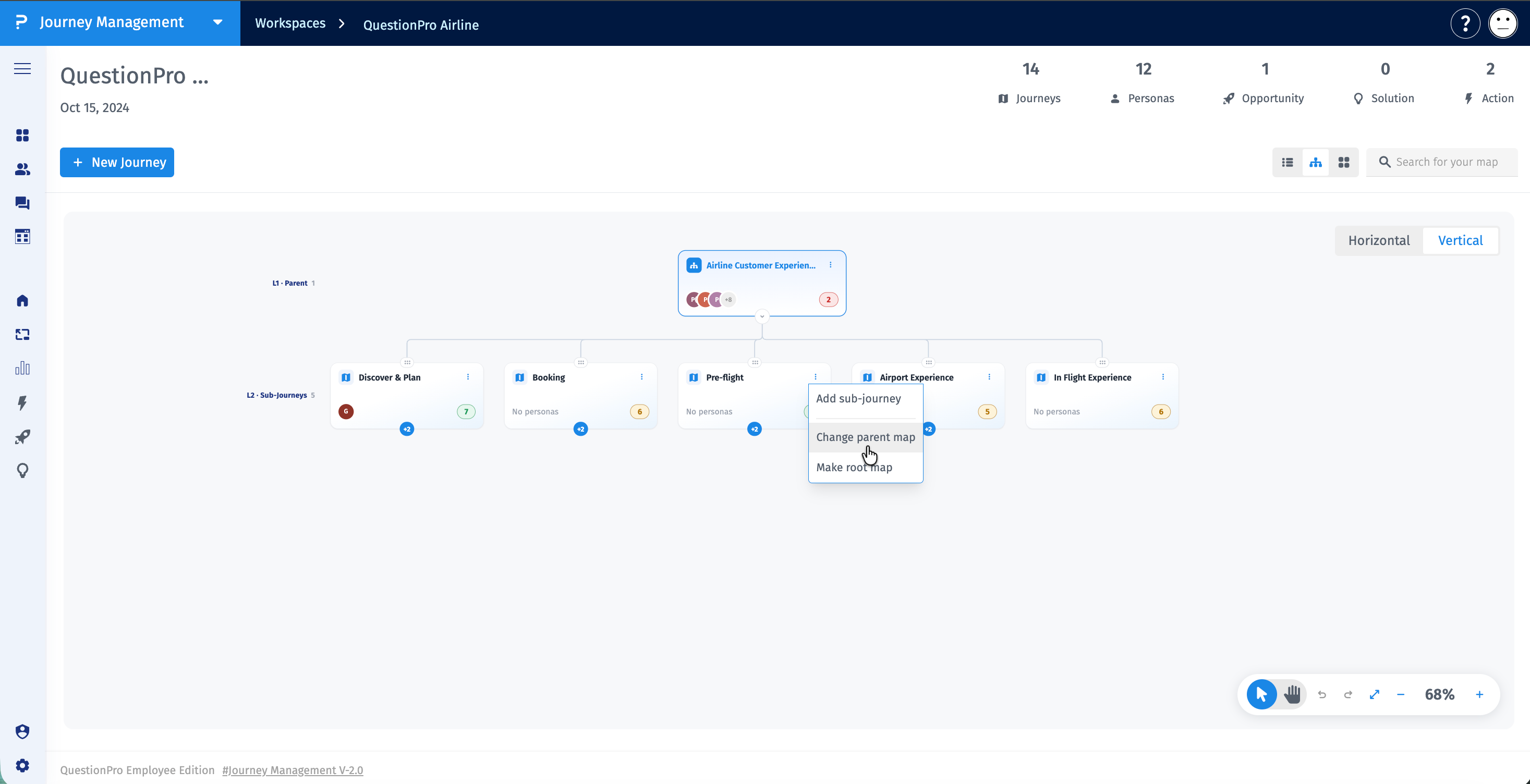
You can move a Child or Grandchild Journey under a different parent when its relationship with other journeys changes. There are two ways to change the parent in Atlas View.
Method 1: Use journey actions
- Open Atlas View.
- Locate the Journey Map you want to move.
- Open the journey's available actions.
- Select the option to change its parent.
- Choose the appropriate parent Journey Map.
Method 2: Drag and drop
- Open Atlas View.
- Locate the Journey Map you want to move.
- Click and hold the Journey Map.
- Drag it to the expected parent Journey Map.
- Drop the journey onto the intended parent.
- Review the hierarchy to verify that the journey appears under the correct parent.
The journey's position in the hierarchy is updated according to the selected parent.
You can add a new sub-journey beneath an existing Journey Map to represent a more detailed part of the customer experience.
- Open Atlas View.
- Locate the Journey Map under which you want to create a sub-journey.
- Open its available actions.
- Select the option to add a sub-journey.
- Follow the on-screen prompts to create the new Journey Map.
The new sub-journey becomes part of the selected journey's hierarchy.
- Open Atlas View.
- Locate the Journey Map you want to explore.
- Select the relevant Journey Map to access it.
- Use Board View to work on the individual journey.
- Return to Atlas View to review the hierarchy or navigate to another related journey.
- Choose a clear, high-level journey to serve as the Root Journey.
- Group related journeys beneath the appropriate parent journey.
- Use Grandchild Journeys to represent more detailed parts of the customer experience.
- Update parent relationships when journeys or their relationships change.
- Use List View to browse journeys, Atlas View to manage relationships, and Board View to work on individual Journey Maps.
How many Root Journeys can I have?
Only one Root Journey can exist at a time within the hierarchy.
Can I change the Root Journey?
Yes. You can change which Journey Map serves as the Root Journey.
Can I change the parent of an existing journey?
Yes. You can use the available journey actions or drag and drop a Journey Map onto its expected parent in Atlas View.
Can I add a journey beneath an existing journey?
Yes. Use the sub-journey action available for a journey in Atlas View.
What is the difference between Atlas View and Board View?
Atlas View shows how Journey Maps are connected in a hierarchy. Board View lets you work with an individual Journey Map.
Can I switch between List View, Atlas View, and Board View?
Yes. All three views are available from your Journey board.
